


Skype for Business for Android
3.75.52K Reviews
App Specs
- Version
- Varies with Device
- Updated On
- License
- Free
- Downloads
- 10,000,000+
- Developer
- Microsoft Corporation
- Categories
- Business
- Platform
- Android, iOS
Screenshots

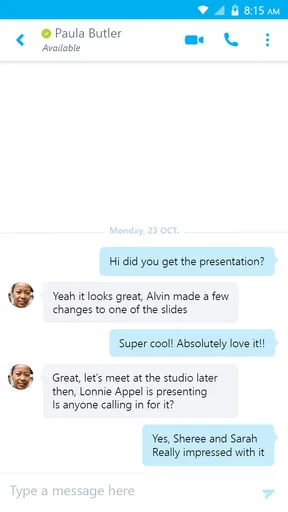
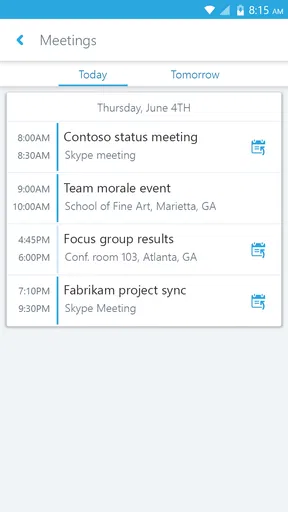
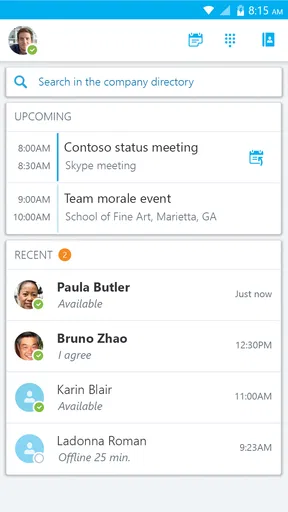




 Analysis by AppCompare
I judge a work communication app by whether it helps me move from a quick question to a useful conversation without making me fight the interface. On Android, Skype for Business is aimed at people whose workplace already uses Microsoft’s business tools. That context matters: it is less compelling as a standalone chat app than as a mobile route into an organization’s existing way of working.
Cost and the value of access
The app is free to download, so trying it does not require an upfront purchase. That is a straightforward advantage if your workplace already relies on it and you want to take calls or check conversations while away from your desk. Free access to the app is not the same thing as a complete work setup, though: its usefulness depends on having the work account and organizational access needed to sign in.
Microsoft Corporation is the developer, and the app sits in the business category. It has been available since March 29, 2013, and its age shows in the way it serves a particular workplace communication environment rather than trying to be everyone’s personal messenger. Its 3.7 average from around 174,000 ratings suggests a mixed reception, while more than 10 million installs show that it has reached a substantial audience. It is rated for Everyone.
Who gets the most from it
I would consider it most useful if your employer has already made Skype for Business part of the workday. In that situation, the main value is continuity: you can keep up with work conversations and meetings on an Android phone instead of treating mobile access as a separate system. If you are choosing a tool for a new team, start by checking what your organization supports and expects employees to use; a free app is not automatically the best choice when colleagues and account access are elsewhere.
For an independent user who simply wants to message friends or make casual video calls, I would look at consumer-focused alternatives instead. A familiar personal messaging app is usually an easier fit for informal contacts, while a general meeting app may be preferable when you only need to join occasional calls. Skype for Business makes more sense when the work setting is the reason you need it.
How it fits into a real workday
Picture a day when I leave my desk before a meeting but still need to follow a work discussion. A mobile app can help me stay reachable, check the conversation, and join the meeting without returning to my computer. That is the practical case for this kind of business communication: fewer interruptions to the day, provided my workplace account is ready and the connection is stable enough for a call.
A useful habit is to treat mobile access as a backup and continuation of the work setup, not as a replacement for planning. Before relying on a meeting while traveling, I would check that I can sign in and that I know where the meeting invitation is. If a conversation needs careful document review or sustained screen sharing, I would prefer a larger screen when one is available. The phone is handy for joining and responding; it is not always the most comfortable place to do detailed work.
Worth Reading Before You Choose

EA SPORTS FC Mobile 26 Is a Bigger Football Game, but It Takes Time

Flipboard Shows What News Apps Must Do Beyond the Feed

Switching to Android Auto Means Rethinking Your Driving Routine

Google Calendar Makes a Crowded Week Easier to Manage

Ludo King Makes the Most of the Minutes Between Plans

Baby Panda World Brings Quick Play to Modern Phones, but Its Game Library Feels Busy
Have you ever found yourself juggling multiple forms of communication at work, wishing there was a simpler way to keep everything in one place? Well, that's exactly where Skype for Business swoops in to save the day. Let me walk you through my experience with this app on Android, and why it might just be the solution you’re looking for.
The Setup Experience
Getting started with Skype for Business on Android is a breeze. Once you’ve downloaded it from the Google Play Store, the installation process is straightforward. You just sign in with your work credentials, and boom, you're in. If you’re already familiar with Microsoft’s ecosystem, you’ll find the interface quite intuitive. The app syncs seamlessly with your Outlook calendar, making it a real time-saver when scheduling meetings.
Features That Stand Out
What really caught my eye is the app’s ability to handle a variety of communication types. Whether it’s instant messaging, voice calls, or video conferencing, Skype for Business does it all. The video quality is surprisingly clear, even when I’m on the go. And let’s not forget about the screen sharing feature—this is a game-changer for remote collaborations.
One of my favorite features is the ability to join meetings with just a tap. No more fiddling with meeting codes or long URLs. And the chat function? It’s like your professional WhatsApp, neatly tucked within the app. You can easily switch from a quick text conversation to a full-blown video call without missing a beat.
Security and Reliability
In today’s world, security is key, especially when handling sensitive work data. Skype for Business incorporates enterprise-level security measures, so you can breathe easy knowing your conversations are protected. The app runs smoothly, even on lower-end devices, which is a big plus if you're not rocking the latest Android phone.
Integration with Other Tools
Another standout aspect is how well Skype for Business integrates with other Microsoft Office apps. Need to send a file from OneDrive or reference a document from Word? It’s all interconnected, allowing for a streamlined workflow. This kind of integration can seriously enhance productivity, especially in a fast-paced work environment.
Things to Consider
While the app is pretty solid, it’s not without its quirks. Occasionally, I noticed a slight lag during video calls, particularly when connected to a less-than-stellar Wi-Fi network. It’s not a dealbreaker, but something to be aware of. Also, if you're someone who prefers a more minimalist design, the interface might feel a bit cluttered at first. But once you get the hang of it, navigation becomes second nature.
Final Thoughts
All in all, Skype for Business for Android is a robust tool that can significantly enhance your work communication. Its seamless integration with other Microsoft services and its wide range of features make it a valuable asset for any professional. Whether you're working remotely or in an office, this app provides a reliable platform to stay connected with your team.
If you’re looking for a comprehensive communication solution on your Android device, give Skype for Business a whirl. You might just find it’s the missing piece in your workday puzzle.
Small workflow choices that make a difference
For me, the best mobile workflow is to use chat for brief coordination and switch to a call only when tone, urgency, or a complicated explanation makes typing inefficient. That keeps a quick exchange from turning into a meeting by default. When a discussion does need screen sharing, I would first decide what I need the other person to see and keep the conversation focused; presenting from a phone can be less comfortable than sharing from a computer, especially when I also need to read messages or consult a document.
Calendar access is most useful when it reduces the steps between an invitation and joining the conversation. I would still check the meeting details before leaving a reliable connection, particularly if I expect to participate rather than simply listen. A one-tap join is convenient, but it does not remove the need to know which meeting I am entering or whether I have the right work account open.
Trade-offs against other work communication apps
Compared with a general-purpose messenger, this app’s strongest reason to be on my phone is its business context and its connection with Microsoft’s work environment. A personal messenger may feel lighter for family and friends, but it does not serve the same purpose when colleagues expect work conversations and meetings to happen through their organization’s tools. Conversely, if a team has standardized on another workplace platform, installing this one may add another inbox rather than simplify anything.
Against a meeting-only app, the appeal here is the combination of messaging and calls in one work-facing place. That can be useful when a meeting grows out of a chat, but it is not a reason to move an entire team if its accounts, habits, and collaboration tools already live elsewhere. I would choose based on where coworkers actually respond and where meeting invitations are managed, not on the number of communication modes an app can claim to cover.
Practical limits to keep in mind
The first question I would answer before installing is whether my workplace account can access the service. The app is free, but that does not by itself create a work identity or guarantee that a particular organization uses it. If sign-in does not work, I would check with the workplace’s IT support or consult its instructions rather than repeatedly trying personal credentials.
For calls, a stable network matters more than the fact that the app is on a phone. If I expect to present, discuss a sensitive topic, or stay in a long meeting, I would choose a dependable connection and a quiet place where I can hear clearly. When the connection is poor, switching to chat for a short update may be more practical than persisting with video. That is not a special trick so much as a sensible way to avoid making a shaky call the center of a workday.
The interface may also take a little adjustment if I am used to consumer chat apps. Work conversations, meeting invitations, and Microsoft-oriented workflows can feel busier than a simple personal inbox. I would give myself time to learn where the conversations and meeting actions sit before relying on the app during a rushed commute or between appointments.
When I would choose it—and when I would not
I would keep it in consideration if my employer already uses it, I need to join work meetings away from my desk, and I value having chat and calling available together. It is especially sensible for someone who moves between office and remote work but still needs to stay connected to the same workplace conversations. In that case, the no-cost download makes trying mobile access an easy decision, as long as the organization supports the account.
I would skip it if I wanted a personal social messenger, if my team uses a different platform, or if I need an app that works independently of a managed work setup. I would also avoid treating a phone as my main presentation station when the task involves close reading, detailed editing, or juggling several documents. A desktop or laptop is a better fit for those jobs, while the Android app is most convincing as a companion for quick coordination and joining meetings.
My recommendation
My verdict is practical rather than universal: Skype for Business offers worthwhile value when it matches the communication system your workplace already uses. Free access removes the purchase decision, but the real payoff comes from being able to continue work conversations and meetings on Android without creating a separate personal workflow. If your organization does not use it, the same app may have little to offer you, and a tool already adopted by your team will usually be the more useful choice.
Pros
- Seamless integration with Office 365.
- High-quality voice and video calls.
- Real-time collaboration tools.
- Secure communication channels.
- User-friendly interface design.
Cons
- Limited functionality compared to desktop.
- Requires strong internet connection.
- Occasional call drop issues.
- Consumes significant battery power.
- Limited customization options.
FAQs for Skype for Business for Android
What are the main features of Skype for Business on Android?
Skype for Business on Android offers features such as instant messaging, voice and video calls, online meetings, and presence information. It integrates with your calendar for easy scheduling and allows for screen sharing during meetings. The app is designed to work seamlessly with your organization’s existing infrastructure, providing a secure and reliable way to communicate.
Is Skype for Business free to use on Android?
Skype for Business itself requires a business or enterprise license, which means it’s not free like the regular Skype app. Your organization typically provides access as part of its Office 365 or Microsoft 365 plan. There might be additional costs depending on your organization’s subscription and usage policies.
Can I use Skype for Business on Android without an internet connection?
Skype for Business requires an active internet connection to function. You need either Wi-Fi or mobile data to send messages, make calls, or join meetings. Offline access is limited to viewing previously received messages and managing contacts, but no real-time communication is possible without connectivity.
How secure is Skype for Business on Android?
Skype for Business provides enterprise-grade security, which includes encryption for calls and meetings. It adheres to industry-standard security protocols to protect data during transmission. However, the overall security also depends on your organization’s IT policies and configurations. Always ensure you are using the latest app version for optimal security.
What are the system requirements for Skype for Business on Android?
To run Skype for Business on Android, you need a device running Android 4.0 or later. Adequate RAM and storage are also necessary to ensure smooth operation. It’s recommended to keep your app updated to the latest version to enjoy all the features and maintain security standards. Check the Play Store for specific device compatibility.


